How to change your language settings on FutureLearn
Learn how you can change your language settings on FutureLearn in our latest guide.

Did you know that 40% of people in the world don’t have access to education in a language they speak or understand? Whether you’re learning how to speak in another language or learning more about a topic in your mother tongue, language has the potential to bridge cultures and open doors to new opportunities and skills.
So, if you’ve been looking to learn in a language other than English, you’re in the right place. FutureLearn now has thousands of online courses in Spanish, Italian, French and Portuguese, meaning that learners on the platform can now view in-course content, course navigation tools and learner comments in any of the four available languages (with German to come later this year).
Ready to explore courses, study and join the conversation in French, Italian, Spanish or Portuguese? Here’s how.
Log in to your account
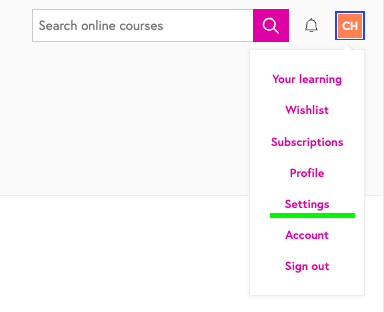
Simply sign in with your email address and password. On logged in, click on the user logo on the top right corner.
Head to ‘Settings’
From the list of options, choose ‘Settings’. You’ll see tabs for ‘Emails and notifications’, ‘Time zone’ and ‘Language’.
Click on ‘Language’
To change your language settings, you’ll want to click on ‘Language’. Select the ‘Language’ tab and choose your preferred language (English, Spanish, Italian, French or Portuguese) from the dropdown menu.
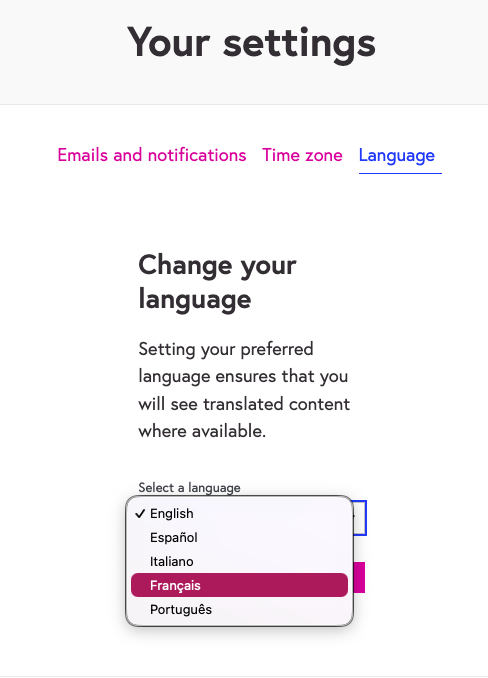
Choose your preferred language
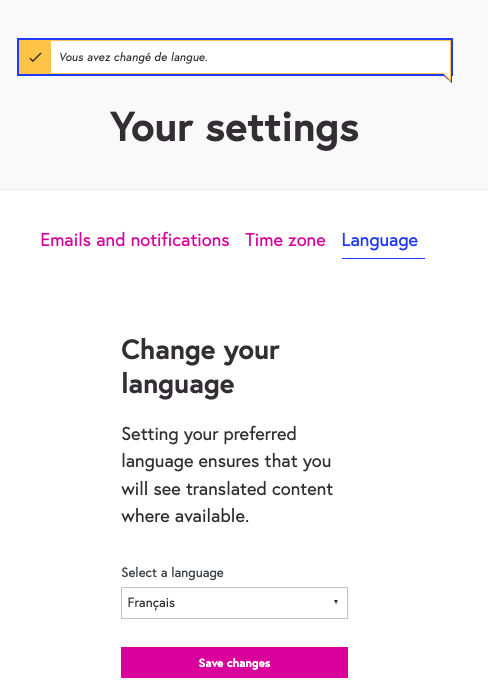
That’s it! You’ll now see translated content wherever possible.
Learn something new with FutureLearn
Wherever you are in the world, explore history, healthcare, the environment and more with the world’s leading universities.
- Il rispetto della biosicurezza negli allevamenti avicoli europei, University of Padova
- Transformando la Movilidad Urbana: Introducción a la Planeación del Transporte para Ciudades Sostenibles, UCL
- Archéologie en danger : Utiliser la télédétection pour protéger le patrimoine culturel, Durham University