Plotting with glyphs
How do I plot with glyphs?
We’ve seen how to plot a single square glyph: by passing in a scalar x and y argument. Most glyph functions can also accept a sequence of x- and y-positions, which will then be translated to multiple glyphs on the plot. These coordinate sequences can be lists, Pandas DataFrames, or a Bokeh class called a ColumnDataSource.
Creating a scatter plot
Follow the instructions below to get started on your Notebook:
Step 1
First, we’ll make a scatter plot by plotting a positively correlated line of squares, and a parabola of circles.
Code:
p.square([-4, -3, -2, -1, 0, 1, 2, 3, 4], [16, 9, 4, 1, 0, 1, 4, 9, 16])
p.circle([-4, -3, -2, -1, 0, 1, 2, 3, 4], [0, 1, 2, 3, 4, 5, 6, 7, 8], color="red")
show(p)
Output:

Step 2
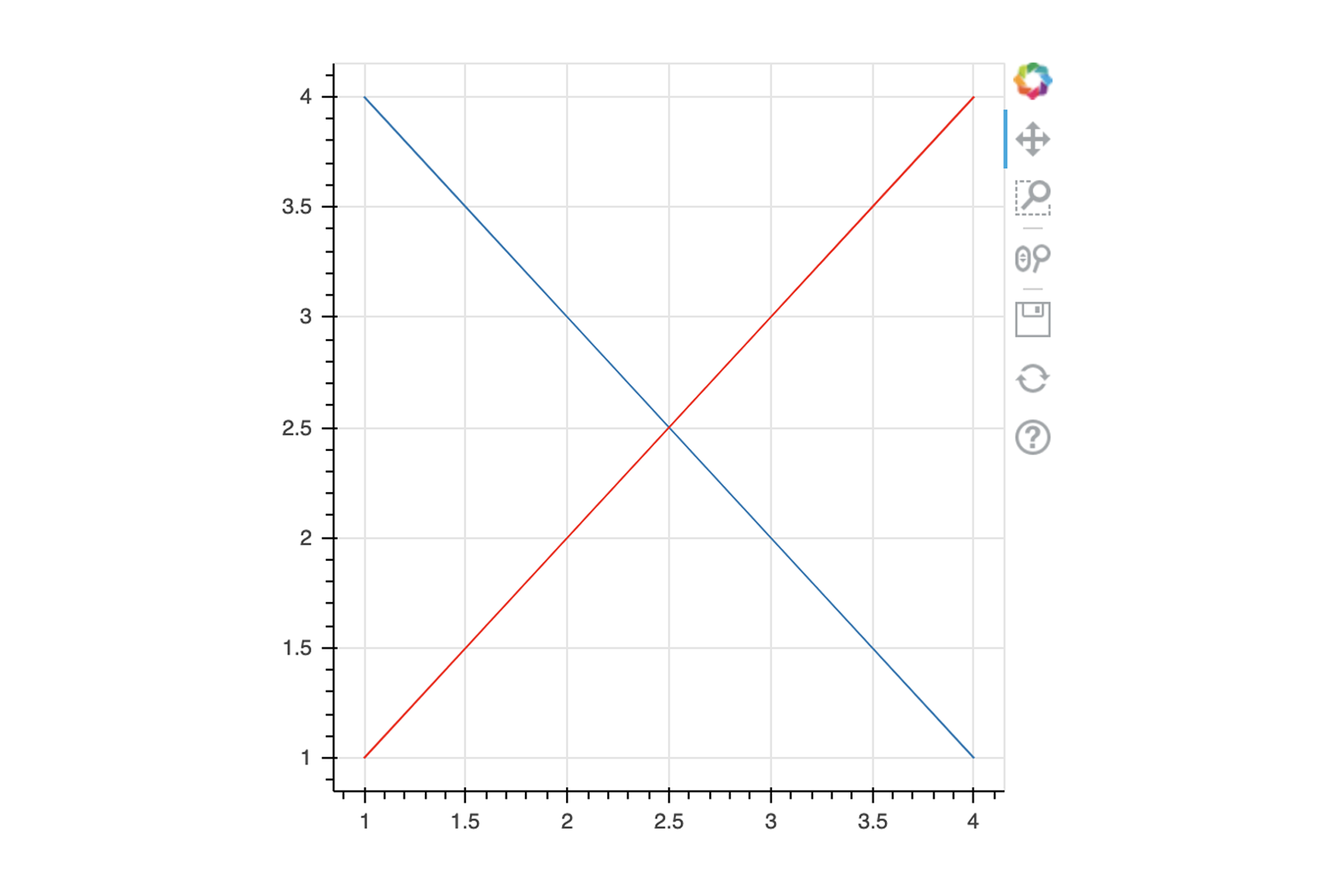
We can also draw lines with the ‘Figure.line’ method. We’ll do this on a new plot.
Code:
p.line([1, 2, 3, 4], [4, 3, 2, 1])
p.line([1, 2, 3, 4], [1, 2, 3, 4], color="red")
show(p)
Output:
Plotting categorical data
Let’s have a look at plotting some categorical data. We can draw bar charts with the ‘Figure.vbar’ (for vertical) or ‘Figure.hbar’ (for horizontal) methods.
Step 1
We’ll look at vertical bar charts here. We need to provide the x-positions and the top (heights) of the bars:
Code:
p.vbar(x=[1, 2, 3], top=[1, 2, 3])
Output:
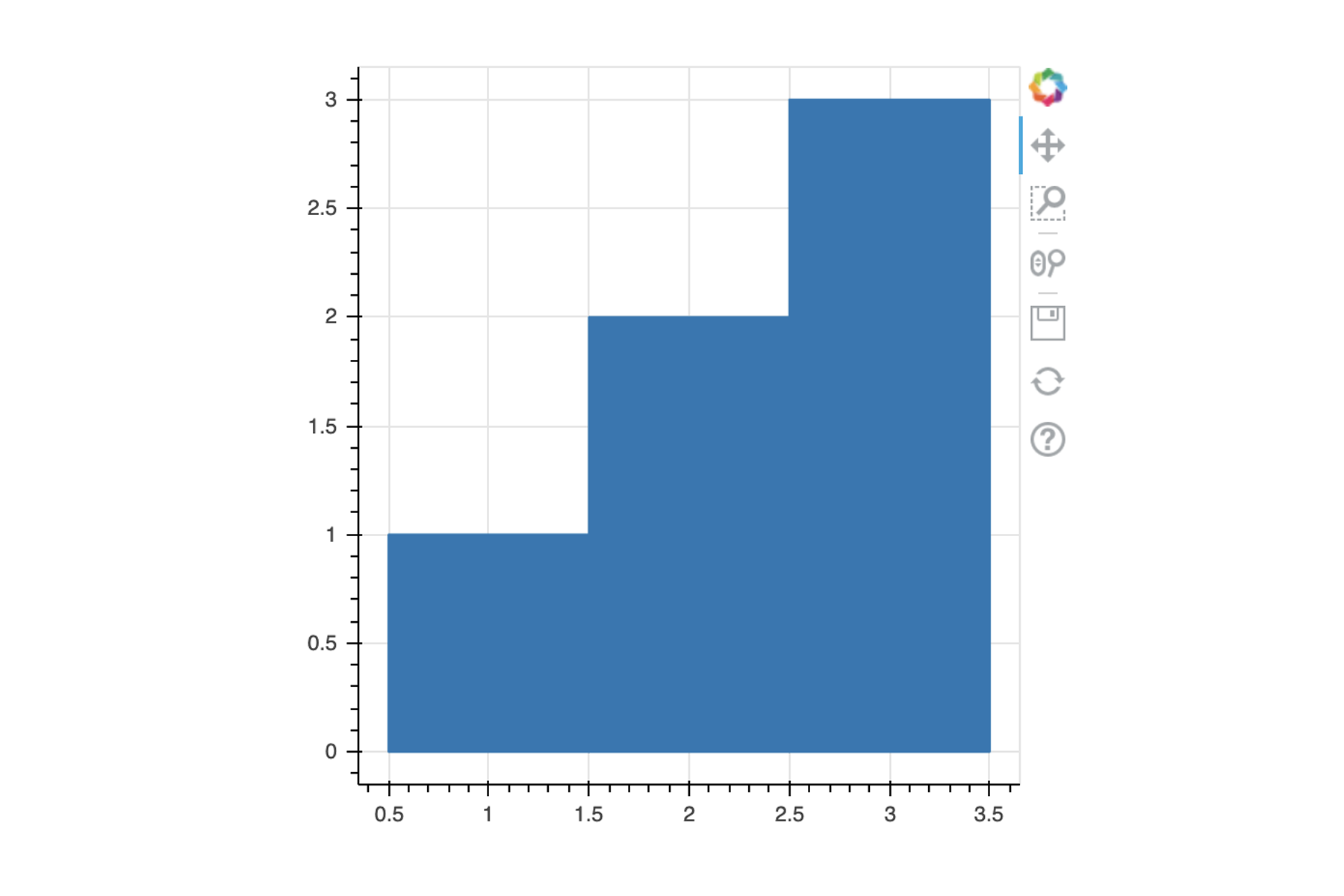
Notice that the output of this looks a bit strange because the bars are simply lines of some sort. Let’s fix this.
Step 2
We can fix it by setting a width on the bar when plotting.
Code:
p.vbar(x=[1, 2, 3], top=[1, 2, 3], width=0.5)
show(p)
Output:

Ah! Doesn’t that look better now?
Step 3
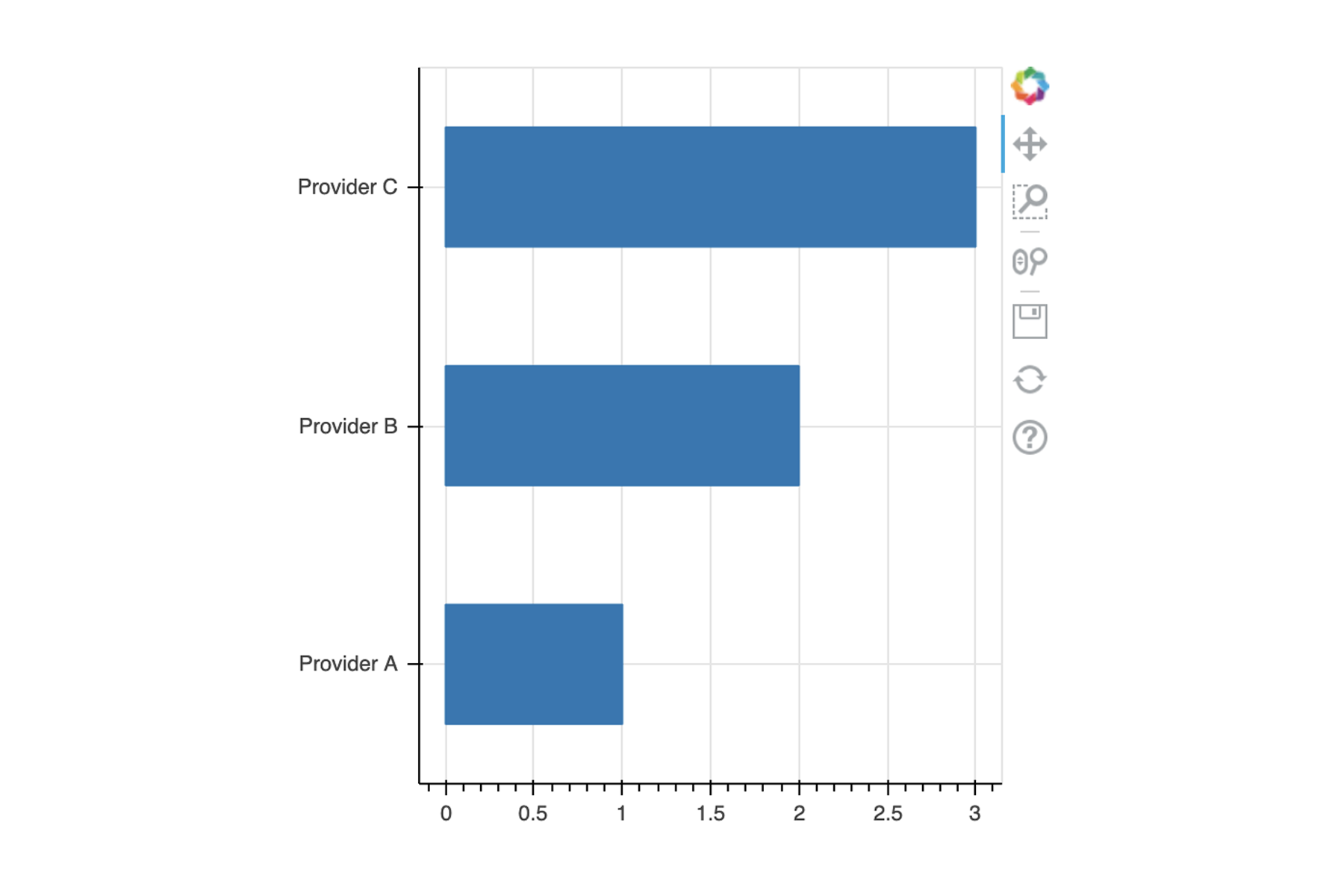
What about the labels, though? The plot cannot make sense without it. To show category labels, we need to provide them as range data for the x-axis – sort of like setting the tick labels in Matplotlib. These are provided as the ‘x_range’ keyword argument when creating the plot:
Code:
x_range = ["Provider A", "Provider B", "Provider C"]
p = figure(x_range=x_range, plot_width=400, plot_height=400)
Step 4
We can then reuse the same list when drawing the bar.
Code:
p.vbar(x=x_range, top=[1, 2, 3], width=0.5)
Output:
Step 5
When drawing horizontal bars with the Figure.hbar method, you will use y instead of x, right instead of top, and height instead of width.
Code:
y_range = ["Provider A", "Provider B", "Provider C"]
p = figure(y_range=y_range, plot_width=400, plot_height=400)
p.hbar(y=y_range, right=[1, 2, 3], height=0.5)
Output:
There are many more ways of drawing categorical data. If you would like to learn more and explore different customisations available, you can read the user guide here.
Read: Bokeh documentation [1]
Additional glyphs
So far, we plotted squares on bar and scatter plots. However, there are many shapes that can just be drawn at arbitrary positions and sizes. Let’s take a look at drawing rectangles.
quad method
With the ‘Figure.quad’ method, rectangles can be drawn by giving the positions of their top, bottom, left, and right edges:
Code:
p.quad(top=[0, 0], bottom=[1, 4], left=[1, 5], right=[3, 6])
Notice the output in your Jupyter Notebook.
rect method
Another way of drawing rectangles is with the ‘Figure.rect’ method, which uses a different format to specify the rectangle(s). This method takes the x and y arguments to set the coordinate of the centre, and the width and height keyword arguments to set the size.
Since we can also draw ellipses using the same arguments (with the ‘Figure.ellipse’ method), we’ll look at these two methods together:
Code:
p.rect(x=[0], y=[0], width=[0.5], height=[0.8])
p.ellipse(x=[0], y=[0], width=[0.1], height=[0.2], color="red")
We’ve provided the arguments as lists with single elements, but multiple glyphs can be drawn with different positions and sizes by using multi-element lists, as exhibited by the output below:
Notice the output in your Jupyter Notebook.
patch method
The last glyph method we’ll look at is patch, which allows drawing of arbitrary shapes by providing a list of x- and y-coordinates. For example, here’s how to draw a triangle:
Code:
p.patch(x=[1, 3, 2], y=[1, 1, 3])
Notice the output in your Jupyter Notebook.
There’s much more you can do, such as draw polygons with holes, or draw arcs and even colormaps. If you’d like to find out more, read the document to learn more.
Read: Plotting with Basic Glyphs [2].
References
- Handling Categorical Data [Document]. Bokeh; [date unknown]. Available from: https://docs.bokeh.org/en/latest/docs/user_guide/categorical.html
- Plotting with Basic Glyphs [Document]. Bokeh; [date unknown]. Available from: https://docs.bokeh.org/en/latest/docs/user_guide/plotting.html
Data Visualisation with Python: Bokeh and Advanced Layouts

Data Visualisation with Python: Bokeh and Advanced Layouts