Setting up the programming environment
Software
In order to carry out the hands-on programming exercises, you need a working Python environment that contains a selection of Python packages for scientific and high-performance computing.
The following software will be used in this course:
- Python 3 interpreter
- NumPy
- Numexpr
- Matplotlib
- Cython
- Cffi
- Mpi4py
- (optionally) iPython and Scipy
You have two options:
- Install the software to your own Linux machine
- Use a virtual machine image we have prepared that has all the required software pre-installed
Option 1: Install software to your own Linux machine
In a Ubuntu based Linux distribution, the installation can usually be done (admin rights needed) with the following commands:
sudo apt install python3-numpy python3-numexpr python3-matplotlib cython3
python3-cffi python3-mpi4py python3-scipy ipython3
For other distributions, please refer to their documentation on how to install
the required software.
Option 2: Use the Virtual Machine prepared for this course
- Download the Virtual Machine
image
(By the way, we are using the same server where Linux was first released to
the world in 1991.)
Size of download is about 1.9 GB - Install the VirtualBox software
- Download the installation file for your operating system (Windows,
Mac, and Linux are all supported): https://www.virtualbox.org/ - When installing the software you might be asked to install some
device drivers (Oracle Corporation Universal Serial Bus, Network
Adapters, Network Service). Install them as well. If you are asked,
choose to install all the components of the VirtualBox software. - After installation you will be notified that the installation is
complete and you can already start Oracle VM VirtualBox in that step by
clicking finish. - In some machines virtualization hardware extension may need to be
enabled in BIOS. Some instructions on how to achieve this can be found
here.
- Download the installation file for your operating system (Windows,
- Start VirtualBox
- Import the Virtual Machine image
- In the File menu choose Import appliance
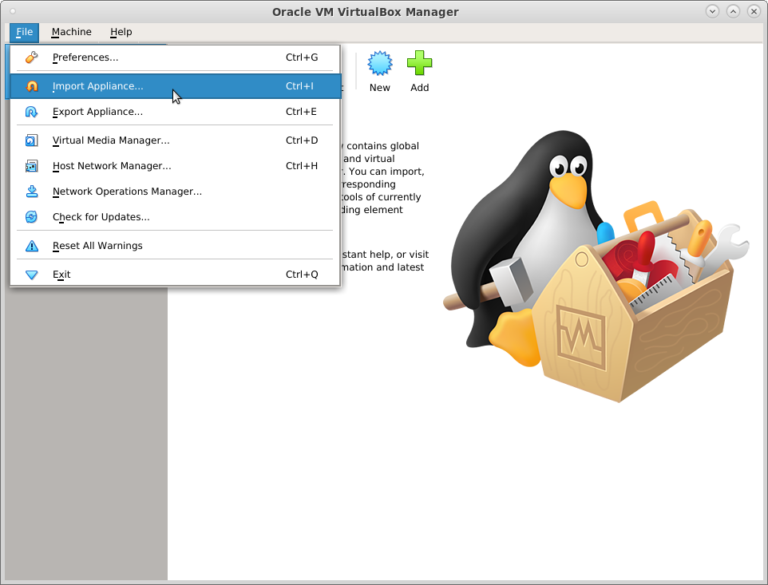
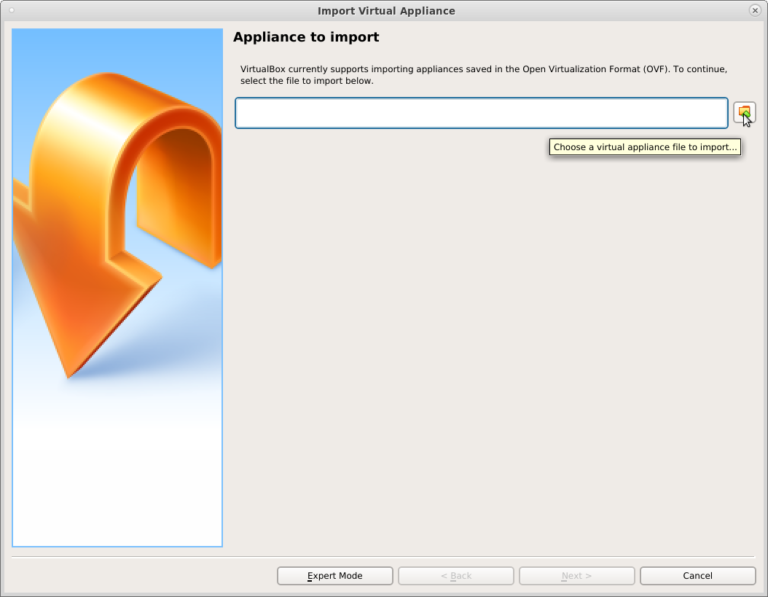
- Select the HPCPython.ova image you downloaded in step 1.
- Default values for memory and number of CPUs should be OK,
but you can also increase them a bit depending on your system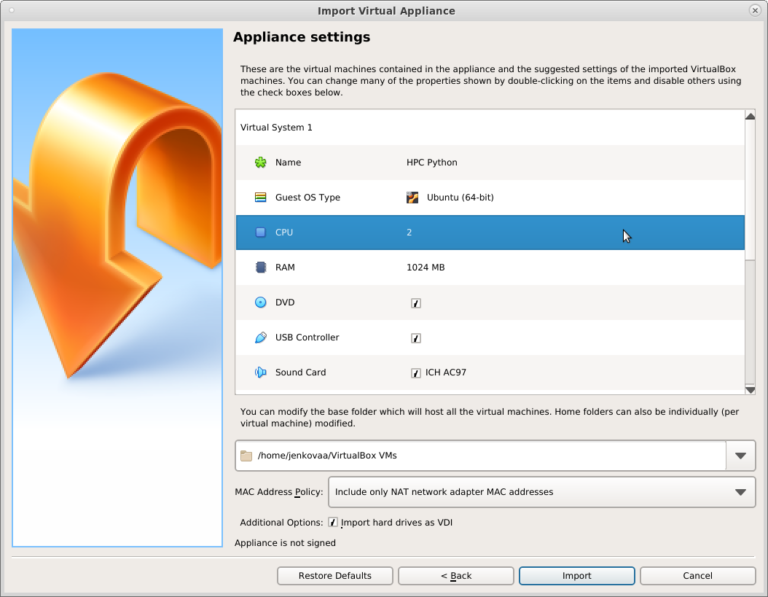
- In the File menu choose Import appliance
- You should now see HPC Python image listed in VirtualBox. You can start
it either by double clicking it or via theStartbutton. - The system should now boot up. Once you are greeted with a login screen,
log in with the following credentials:
- username:
Monty Python - password:
hpc1python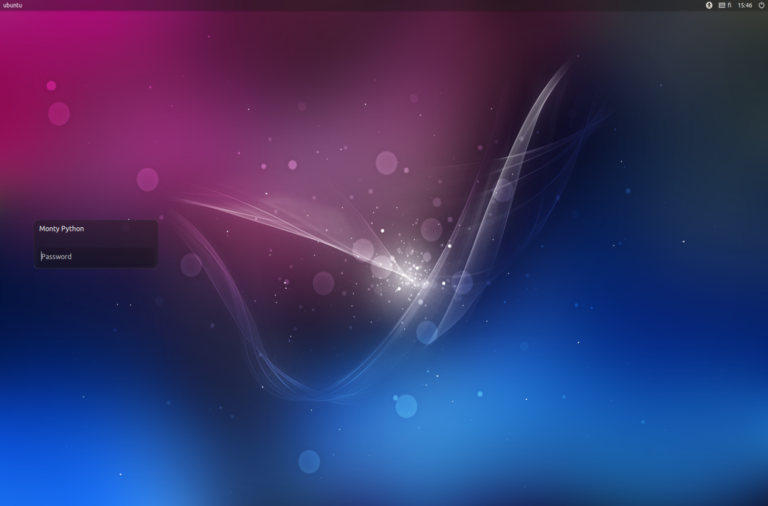
- username:
-
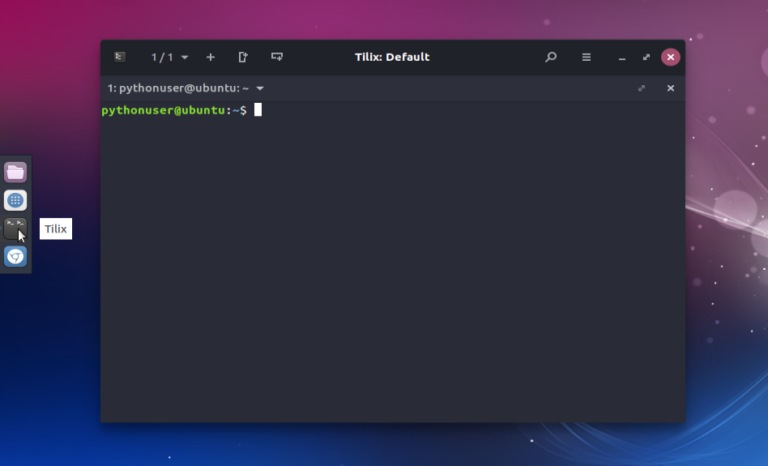
Hands-on exercises are carried out in the command line terminal which you can open from the launcher panel on the left.
- There are several standard text editors (gedit, nano, emacs, vim)
available, if you are not familiar with any of these we recommend starting
with gedit.
- There are several standard text editors (gedit, nano, emacs, vim)
Exercise material
In addition to installing the required software (see above), you need to
download also some material for the hands-on exercises.
Exercise material is hosted on GitHub at:
https://github.com/csc-training/hpc-python
Download
You have three options for downloading the material to your own Linux system
or to the Virtual Machine:
- Recommended approach: Fork the GitHub repository and clone your fork
- You need to have a GitHub user account for this option
- Go to course repository in
GitHub and Sign in - Next, Fork the repository via the button in the top right corner.
-
After forking the repository, open the Terminal and clone your fork
with the command (using your own GitHub username):git clone https://github.com/my-github-username/hpc-python.gitAn easy way to get the URL for cloning, is to copy it from the green
Clone or download button on the Github page of your fork. - No further usage of git is required in the course, but if you are
familiar with it we strongly recommend committing often and pushing
your work back to your own GitHub.
- Clone the repository directly
-
Open the Terminal and clone the repository directly with the command:
git clone https://github.com/csc-training/hpc-python.git -
However, with this option, any changes you make will only be available
locally and can not be pushed back to Github
-
- (Not recommended): If needed, you can also download all the material via
from the Clone or download button as a Zip-file. However, this option
means you will loose all the benefits of version control.
Overall structure
Skeleton code snippets and model solutions to hands-on exercises are in
separate directories for each exercise. The exercises are organised
in subdirectories (mpi/, numpy/ etc.) for each topic under the main
directory (hpc-python/).
The file README.md contains a list of all exercises (with links), which is
also shown as the default page on Github, and can be an easy way to navigate
to an exercise.
Each exercise has also a README.md file that contains the instructions for the
exercise and a solution/ directory that contains a model solution. Additional
files (skeleton code, input data etc.) may also be present.
Test the software installation
Go into the test subdirectory and execute the test set:
pythonuser@ubuntu:~/hpc-python$ cd test
pythonuser@ubuntu:~/hpc-python/test$ python3 test.py
If everything is fine, you should see Test set passed printed on the screen.
Please comment if you have any problems setting up the environment or downloading the exercises.