Dashboards
Dashboards are a collection of views, charts, IFRAMES, web resources, and several other type graphical reports, charts or views that give you a high-level overview of data all in one diagram.
You can show how many opportunities closed at the same time showing all the open opportunities that you still have pending. See example in the picture below:
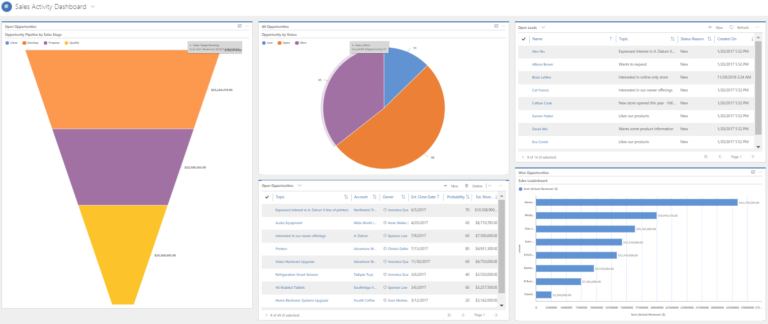
The out of the box option offers a maximum of six components per dashboard. Unless you are using interactive dashboards or with customisations like PowerShell, you can increase this default. This allows you to analyse different sales data at the same time. Essentially, a dashboard is a snapshot of the data in different formats on one page.
Note: Page does not auto-refresh, but it will offer the most current data every time the user loads the page.
- Sales Dashboard
- Sales Activity Dashboard
- Sales Activity Social Dashboard
Custom Dashboards
Note: If a user is disabled and that user has user-owned dashboards that have been shared with others, those dashboards will no longer be available to the user that they were shared with.
Note: Allow Power BI visualisation embedding has to be set to Yes in the system settings. This is set to No by default.
Interactive Dashboards
Interactive Dashboards are different from other dashboards as they will give a visual representation of data associated with one entity. Dynamics 365 currently does not have out of the box interactive dashboards for sales so you would have to create your own if you want to use within the sales hub.
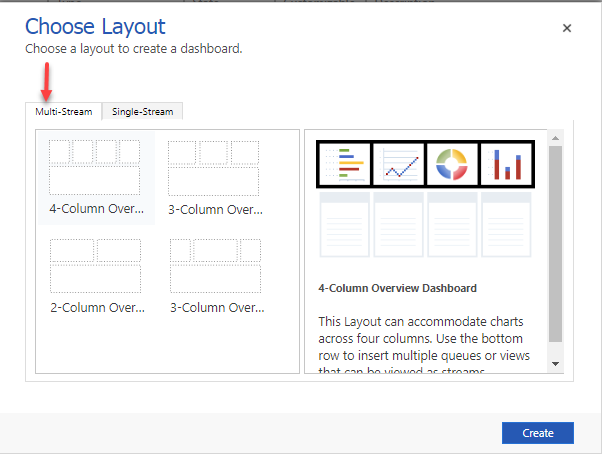
There are two types of interactive experiences. The multi-stream dashboard displays your data in real-time with single or multiple data streams. The data in the stream can only have one entity but there can be multiple streams with each stream to a different entity. You will see the visual filters in a row on top and the data streams below them.
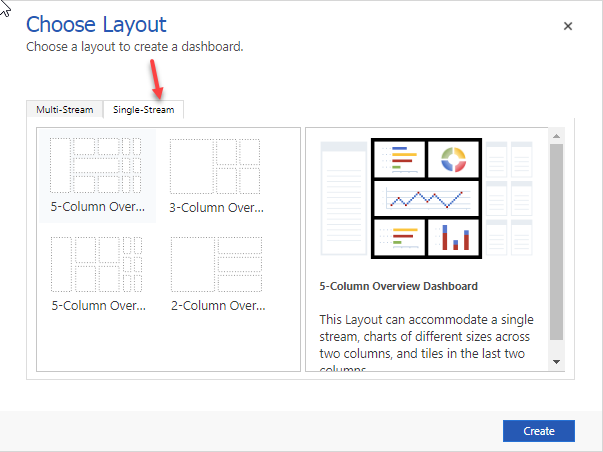
While single-stream dashboards display data from one stream from one entity view. You can add many more components to a single stream dashboard than a multi-stream dashboard. The single-stream dashboard has the data stream on the left and visual filters and tiles on the right.
Interactive dashboards also have the option to modify the colours for fields used when rendering your charts. Just like all dashboards, you can set security roles for individual dashboards.
Interactive dashboards were originally designed for customer service but are a growing option for all other Dynamics 365 applications.
Remember to engage with peers – share an experience, ask a question or leave a comment. When you are ready, click on Mark as complete and we will move on to the next step which is reports.
Dynamics 365: Customer Engagement for Sales


Dynamics 365: Customer Engagement for Sales