Introduction to layouts
Download your Notebook
Before you start this activity, download your accompanying Jupyter Notebook containing explanations and codes in cells that you can run to receive outputs.
The Notebook contains only the code snippets that you can run to get an immersive and interactive experience as well as instant results of the codes alongside the explanations.
Make the best use of this opportunity to familiarise yourself with using the Notebook.
Download: Layouts Interactions and Annotations
At the end of this step, you will find an interesting activity to check your knowledge!
What are layouts?
The layout provides meaning to your design and makes it look noticeably appealing. It helps to maintain balance from page to page. Grids are an essential component of the layout design, as they support all layouts, infographics, and presentations incredibly well. Layout design comprises one grid or a group of grids, depending on the requirements.

So far, we have only shown one figure at a time with Bokeh. However, we can use custom layouts to group them into rows and / or columns.
Previously in Matplotlib, you generated the number of rows and columns when you first drew the figure and axes. However, with Bokeh, you start with plots and then choose how they are to be laid out when displayed. In this step, we will use Bokeh in Python and see examples as demonstrations of how to layout plots using rows and columns.
Creating rows and columns
To start with, let us try laying out plots in a single row with multiple columns, using the row function. This is imported from bokeh.layouts.
Demonstration: Single row with multiple columns
Step 1
Import figure from Bokeh layouts.
Code:
from bokeh.plotting import figure, output_notebook, show
from bokeh.layouts import row
output_notebook()
figure_width = 300
figure_height = 400
Output:
BokehJS 2.2.3 successfully loaded
Step 2
Select multiple arguments (one or more plots or other layouts) to arrange into a row.
Code:
square_plot = figure(plot_width=figure_width, plot_height=figure_height)
circle_plot = figure(plot_width=figure_width, plot_height=figure_height)
triangle_plot = figure(plot_width=figure_width, plot_height=figure_height)

square_plot.square([0], [0], size=20)
circle_plot.circle([1], [1], size=30)
triangle_plot.triangle([2], [2], size=30)
Step 3
Arrange them into a single row using the row function.
Code:
r1 = row(square_plot, circle_plot, triangle_plot)
show(r1)
Output:

Like rows, there are also columns, which are created the same way but which lay out the data in a single column with multiple rows.
Demonstration: Single column with multiple rows
Step 1
Import figure from Bokeh layouts.
Code:
from bokeh.layouts import column
Arrange them into a single column using the column function.
Code:
c1 = column(square_plot, circle_plot, triangle_plot)
show(c1)
Output:
Did you get an output where multiple rows are seen, one below the other, in a single column?
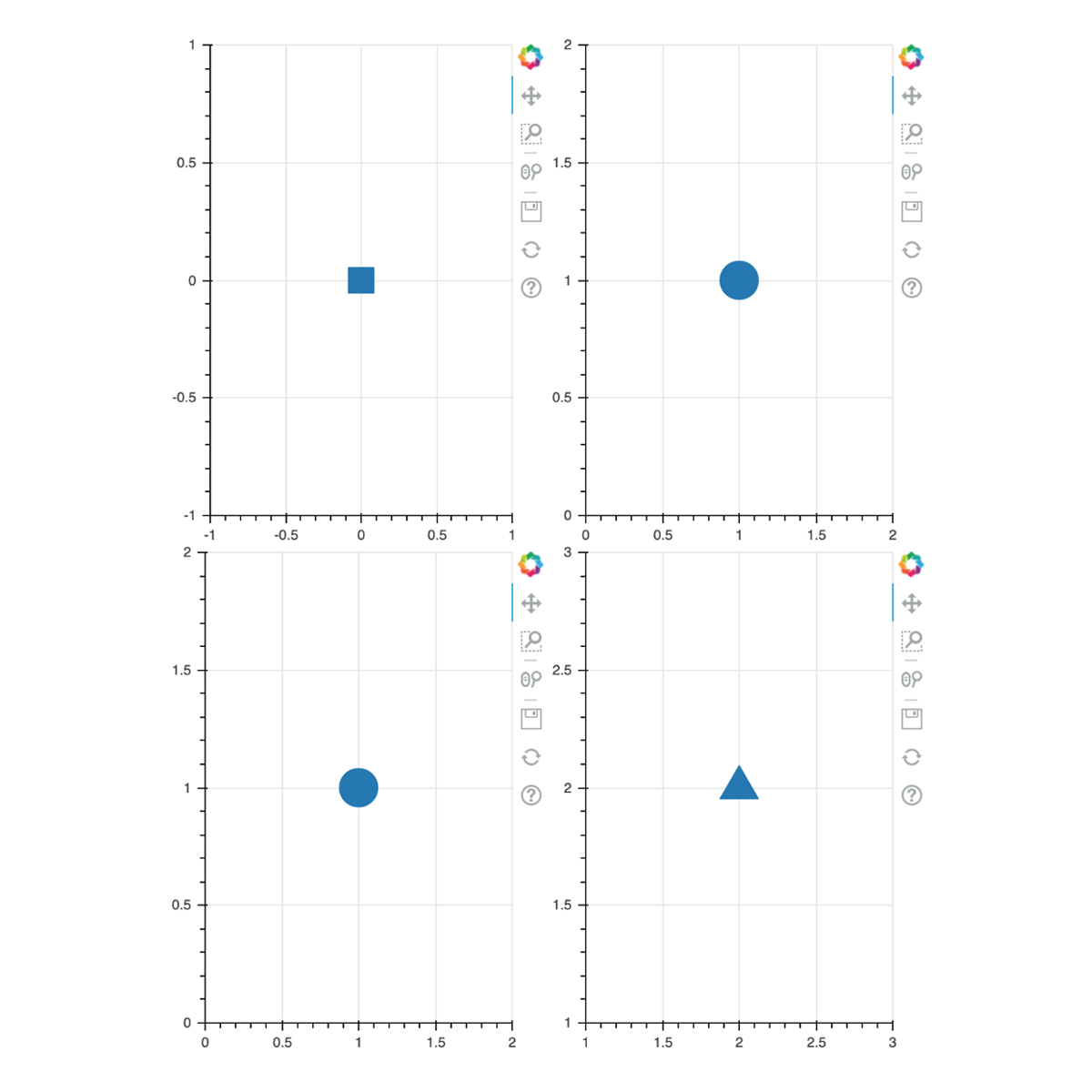
Demonstration: Single two-column layout with two rows
Since we already have a plot ready, just arrange them into a single two-column layout with two rows.
Code:
c2 = column(row(square_plot, circle_plot), row(circle_plot, triangle_plot))
show(c2)
Output:
Gridplot layout
An alternative method to making grid plots is to use the gridplot layout function. In the previous operations, row and column used the sizes of the individual plots whereas the gridplot function allows overriding of these sizes with the use of the plot_width and plot_height keyword arguments, applying the sizes to each of the plots.
Demonstration: Gridplot layout
Step 1
Import gridplot from Bokeh layouts.
Code:
~~ python
from bokeh.layouts import gridplot
~~~
Step 2
Draw the plots into a two-by-two grid, fixing each plot’s size to 400 by 400. Leave a space in the bottom right plot.
Code:
g1 = gridplot([
 [square_plot, circle_plot],
 [None, triangle_plot]
 ],
 plot_width=400,
 plot_height=400
)
show(g1)
Output:

Moving on, we will explore some attractive advanced layouts and sizing options. To learn more about layouts in Bokeh, read the resource provided below.
Read: Creating Layouts [1]
Did you notice?
Interpretation of layouts can vary. Which layout did you find the most meaningful and useful? Tell us why.
Share your thoughts in the comments section below.
References
- Creating Layouts [Document]. Bokeh; [date unknown]. Available from: https://docs.bokeh.org/en/latest/docs/user_guide/layout.html#userguide-layout
Data Visualisation with Python: Bokeh and Advanced Layouts


Data Visualisation with Python: Bokeh and Advanced Layouts